Recalculating Session Data When You Have Edited NMEA Records
In certain circumstances we may want to recalculate all the summary data for a recording session.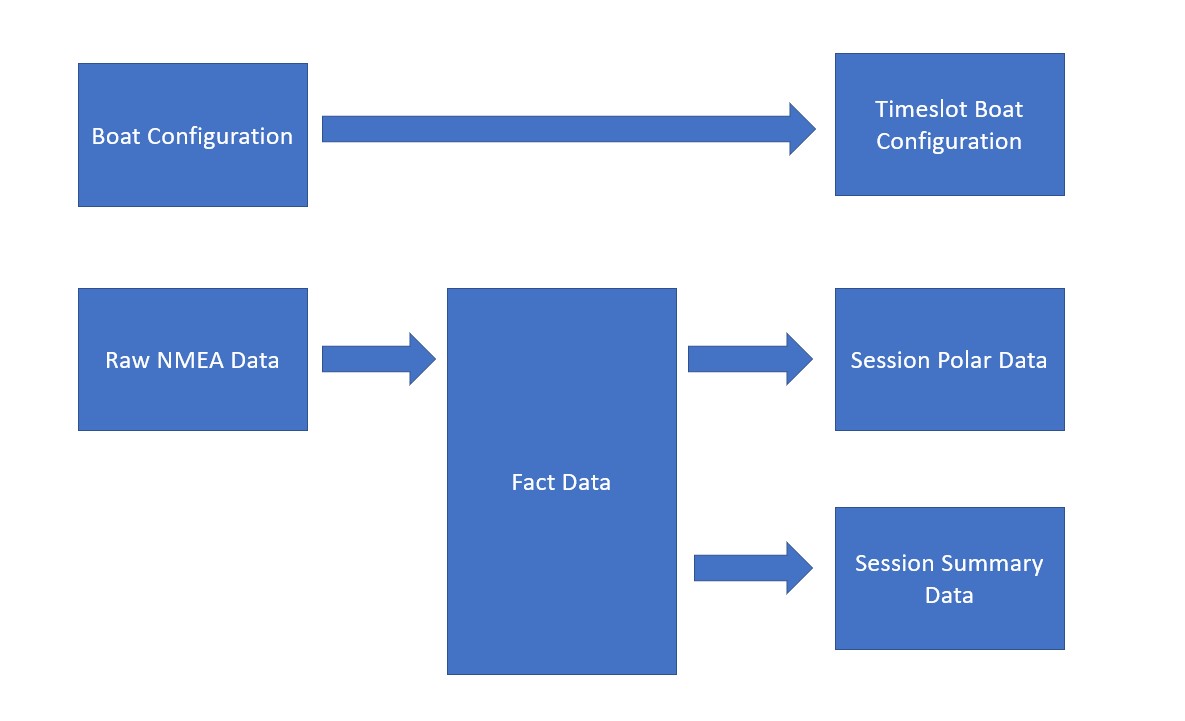
Rockit Analytics records the data in stages.
- First it collects the NMEA messages and stores them.
- Then it standardises the information. NMEA 2000 and 0183 transmit information in different forms. Rockit will translate that information into a common internal format. We call that Fact data. So we hold facts about thinks like the GPS Position and the Wind direction.
- There is also the base Boat Configuration information. For each Timeslot in a session we take a snapshot of the configuration. As the boat config changes, different active sails etc, through a session we record those changes. There is effectively a copy of the configuration for each point in time.
- From that standardised data we then create Session level Polar data and Summarise the Fact information for each Timeslot.
The Recording Data Window makes it possible to edit the data that is recorded; for instance we might need to delete a lot of invalid NMEA source data from the Rockit database. Whilst the deletion will remove the invalid NMEA records from the Rockit database it will not recalculate the invalid summary and polar data that will potentially result. We use the bulk recalculation process to rebuild the summary data for the cleaned up session.
Most of the graphs and maps display summary rather than raw or Fact data. Making a change to the Raw or Fact data will invalidate the Summary and Polar data for a session so we need to recalculate the data.
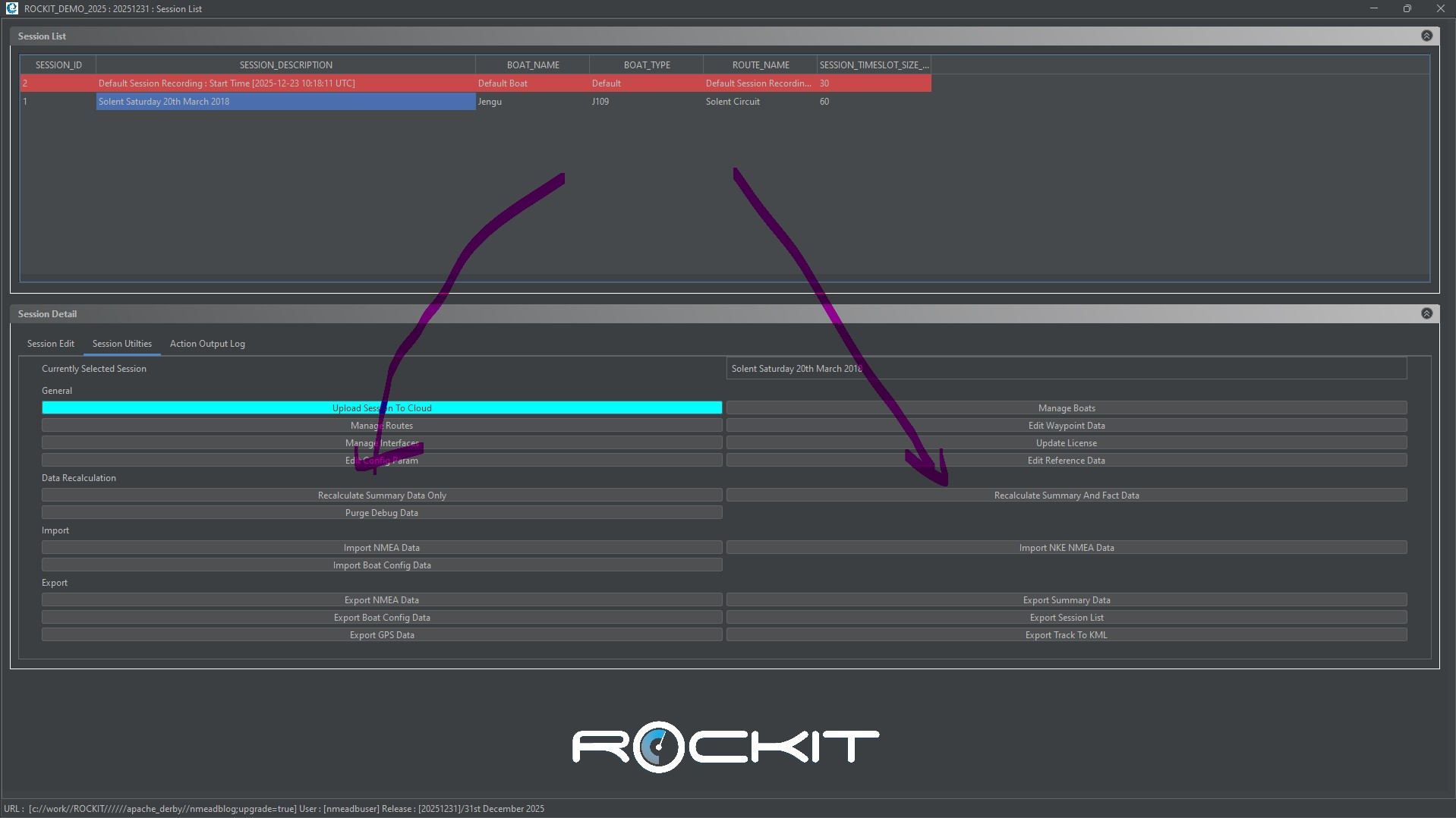
You can use the button on the Session List Windows Session Utilities screen’s to kick off the recalculation process
Recalculating A Session.
Follow the steps below to recalculate a sessions data.
Select the Session that you want to recalculate from the list on the Session List.
You then have two options
- Recalculate the Summary and Fact Data; If you make pretty much any change to the raw NMEA data you will need to run this recalculation process so that the Raw data changes are reflected in the Summary and Polar data displayed.
- Recalculate Summary Data; If you have changed the Fact data you can recalculate the Summary and Polar data. This is very much an admin function that will have limited use in most scenarios.
You will get a number of “Do you really want to do this style” messages to click through before the calculation process starts.
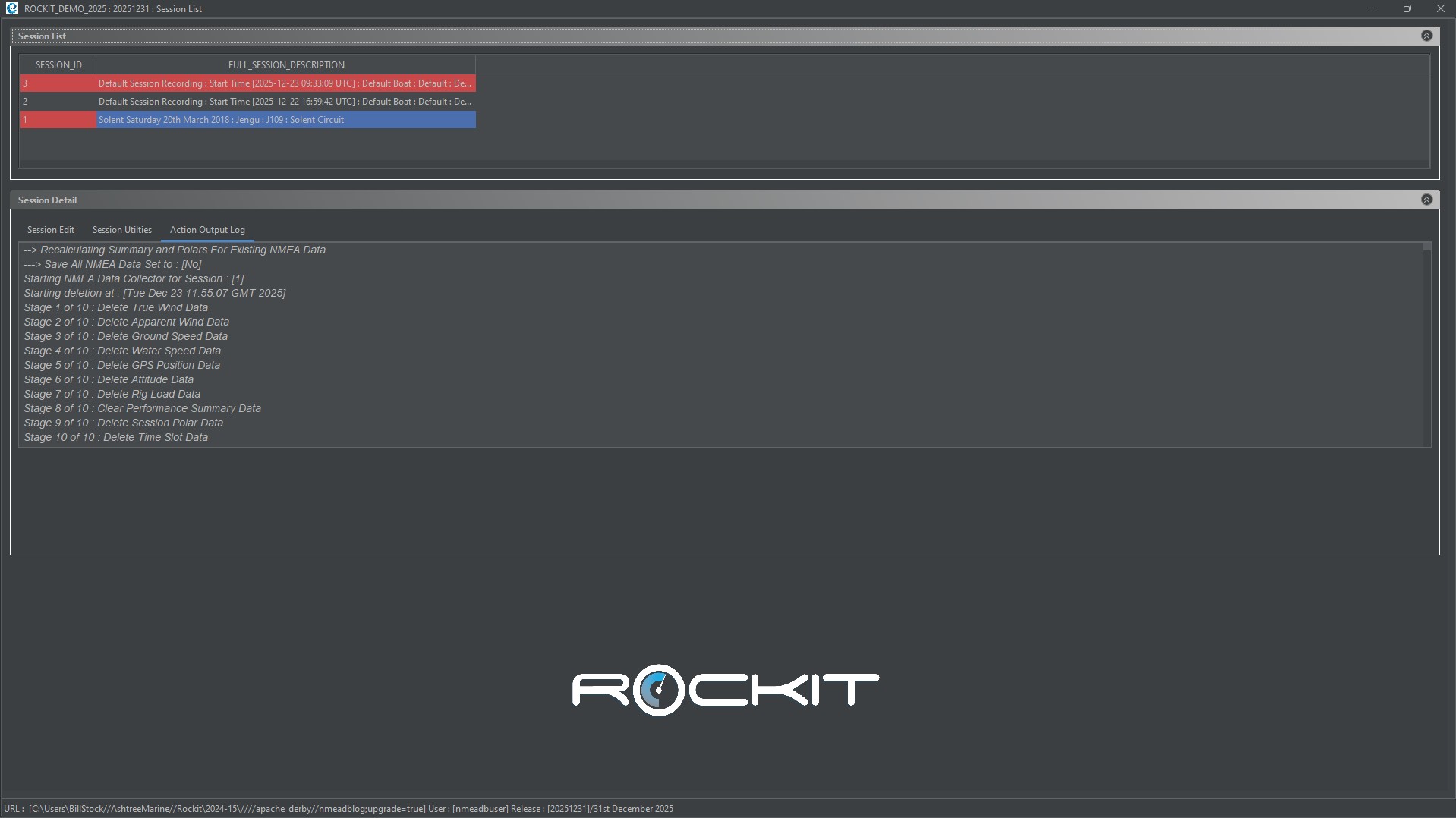
The number of NMEA Records recorded for the session will determine how long the recalculation takes. Rockit Analytics is in effect re-running the collection of the data from the target boats network but pulling the messages from the internal Rockit database. The progress of the recalculation will appear on the Action Out Log tab on the Session List window. There are some shortcuts that Rockit makes within the recalculation processing but it will still take quite a long while (hours) to completely rebuild a large data set. The initial stage in the process is indexing the raw NMEA records and breaking the batch process into optimally sized chunks … be patient that will take a while and the process may appear to have frozen….
A Note On Boat Configuration Data And Recalculation
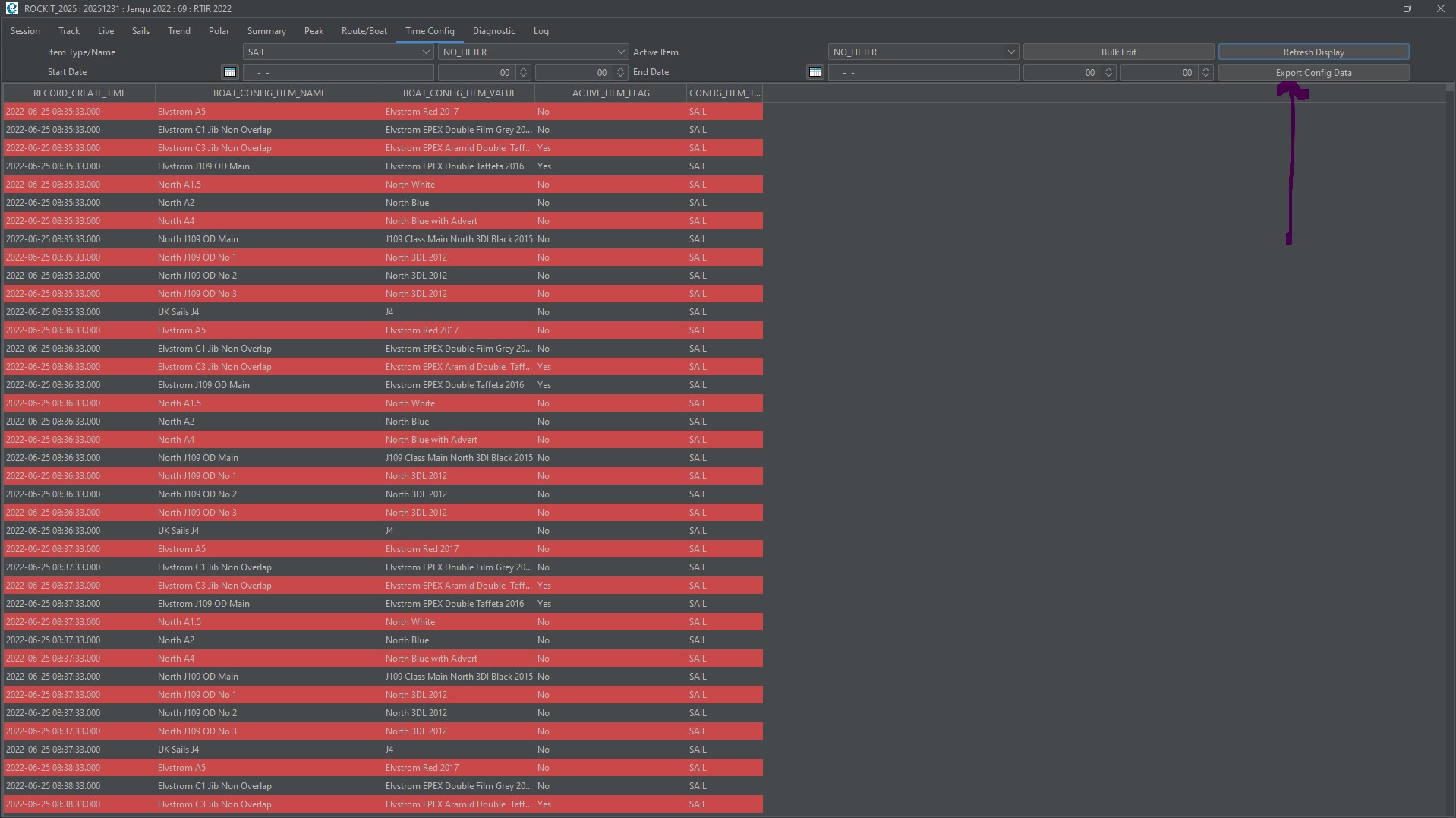
The Recalculate Fact and Summary Data function deletes all of the calculated data for the Session. This includes Session Polars, Performance Summary information and the Time Boat Configuration information. This means that if you have recorded detailed Boat Configuration changes you will need to re-enter which parts of the boat configuration are active during which timeslot.
We would recommend exporting the Time Boat Configuration Data before the recalculation is initialised. You can then use the Recording Session Data window Time Config to export that information. Once the recalculation is complete you can use the Time Config tab and Bulk Edit function to put things like sail changes back in. See the section on the Recording Session Screen for more information about to bulk update config data.